Connected Shifts: Plan Back-to-Back Work Across Workplaces, With Real Travel Times
T
Tildai
·
October 01, 2026
If you work at more than one place, you already know the puzzle. The morning shift at the clinic pays well. So does the evening shift at the hotel across town. Can you do both on the same day, or will you spend the whole gap on a bus and arrive late?
Until now, the Week Optimizer in ShiftManager couldn't help with that. It kept a fixed break between every pair of shifts, so it never suggested working two shifts back to back, even when you easily could. This update changes that. The optimizer now knows where your workplaces are, how long it takes to travel between them by public transport, and can plan connected shifts for you. It also gives you directions to get there.
This post explains how it all works, what each setting does, and how to get the most accurate plan.
You tell the optimizer how much you want to earn in a week. It looks at your Shift Templates and the shifts you've already planned, across every workplace you can work at. Then it suggests the combination that earns you the most while staying within your limits: maximum hours per week, rest between shifts, sleep, days in a row, and so on. You review the suggestions and add the ones you like to your schedule with one click.
Min Rest Hours Between Shifts is the shortest break you're willing to have between finishing one stretch of work and starting the next. The default is 8 hours. If you finish at 10pm with an 8-hour minimum rest, the optimizer won't plan anything for you before 6am.
That protects you from exhausting schedules. But on its own, it's too strict for people who regularly go straight from one job to another in the same day. A 7am–3pm shift followed by a 4pm–10pm shift has only a one-hour gap, so a plain 8-hour rule would always reject it, even though thousands of people work exactly like that.
A connected shift is when you go straight from one shift to the next, at the same workplace or a different one. In the optimizer form you'll now find a switch called Allow connected shifts (on by default). With it on, the optimizer can place two shifts closer together than your Min Rest Hours, but only when all of these are true:
Your Min Rest Hours still applies between these blocks. So a typical connected day might be: clinic 7am–3pm, a one-hour trip across town, hotel 4pm–10pm, then at least 8 hours of rest before your next shift.
Example: the clinic and the hotel are about 30 minutes apart by bus. The gap between 3pm and 4pm is 60 minutes, which covers 30 minutes of travel plus the 15-minute buffer, so the optimizer can plan both shifts. If the trip took 50 minutes, 50 + 15 would be more than the 60-minute gap, and the optimizer would pick only the better-paid of the two.
To know how far apart your workplaces are, ShiftManager needs to know where they are. Open My Work → Workplace Locations and you'll see everything in one place:
Next to each workplace, tap Set location (or Edit). On that workplace's page you can:
You can set the location of workplaces you own, and managers can set it for the workplaces they manage. Workplaces run by an agency show Set by manager: the agency or workplace manager sets those once, for everyone who works there.
Setting a location is optional, but it's what makes the travel estimates realistic. Without one, ShiftManager has to assume a cautious 90 minutes between workplaces, which means fewer connected shifts get suggested.
Travel times are for public transport, since that's how most people get between shifts. For each pair of workplaces, ShiftManager uses the first of these that's available:
You can check every travel time, and where it came from, in the table on the Workplace Locations page. Each one has a label: Your saved travel time, Google Maps (transit), Estimated from distance or Default. Your optimizer results show the same label on every connected shift, so you always know how much to trust the number.
Live transit times have a monthly allowance. If it runs out, you'll see a short note on your results and ShiftManager switches to your saved times and distance estimates until the next month. Nothing breaks, and entering your own travel times keeps your plans just as accurate in the meantime.
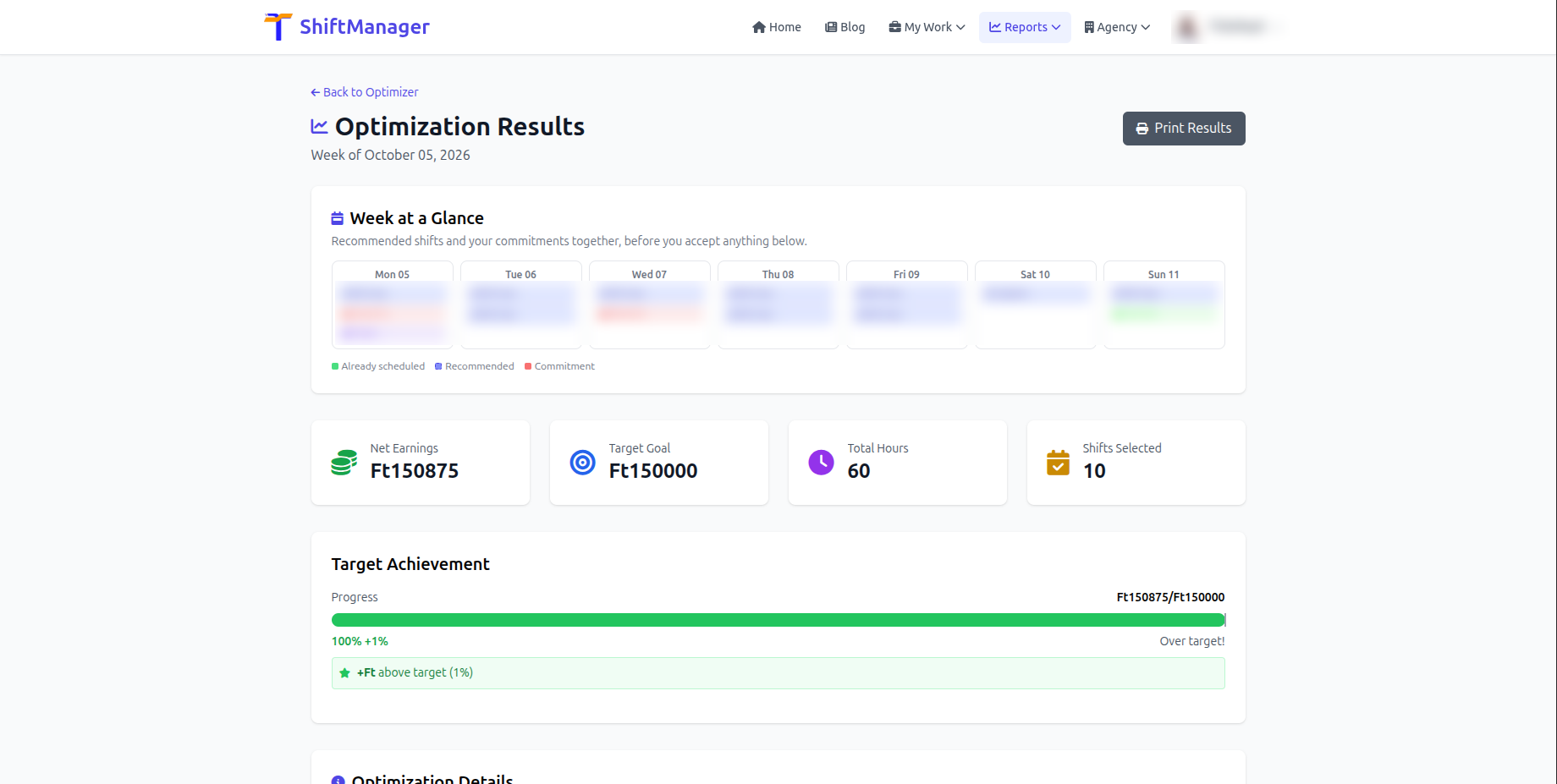
When the optimizer suggests a connected shift between two different workplaces, the results page shows a small hand-off card between the two shifts, with:
Each workplace page also has its own Directions button, which takes you there from wherever you are.
While building this, we also improved how the optimizer protects your sleep. Before, any shift ending after 6pm counted as "overnight", so finishing at 6pm and starting again at 7pm the same evening was wrongly treated as a missed night's sleep. Now the optimizer only applies Min Sleep Hours to gaps that actually run through the night (midnight to 6am). Your evening plans are judged fairly, and your nights are still protected.
No. Everything still works without them. Without locations, though, the optimizer assumes a long journey between workplaces, so it suggests fewer connected shifts.
The same people who can already see the workplace in ShiftManager. The address and pin are used only to work out travel times and show directions. When you search for an address, or a travel time is looked up, the address or map position is sent to the map service doing that lookup (OpenStreetMap or Google Maps), and only for that purpose.
Live transit times weren't available for that pair of workplaces, so ShiftManager estimated from the distance between the pins. If the estimate looks off, enter your real travel time on that workplace's location page and it'll be used from then on.
If it says Set by manager, the workplace is run by an agency or has a workplace manager. They set its location once for everyone. Ask them to add it, or just enter your own travel times to it from one of your own workplaces.
No. Connected shifts always need a real gap that covers the travel time plus your buffer.
Of course. The optimizer only suggests. You choose which shifts to add to your schedule.
Connected shifts, workplace locations and directions are available now in the Week Optimizer. Set up your workplace locations, run the optimizer for next week, and see how much more of your week can work for you.
Comments